The calendar on the wall
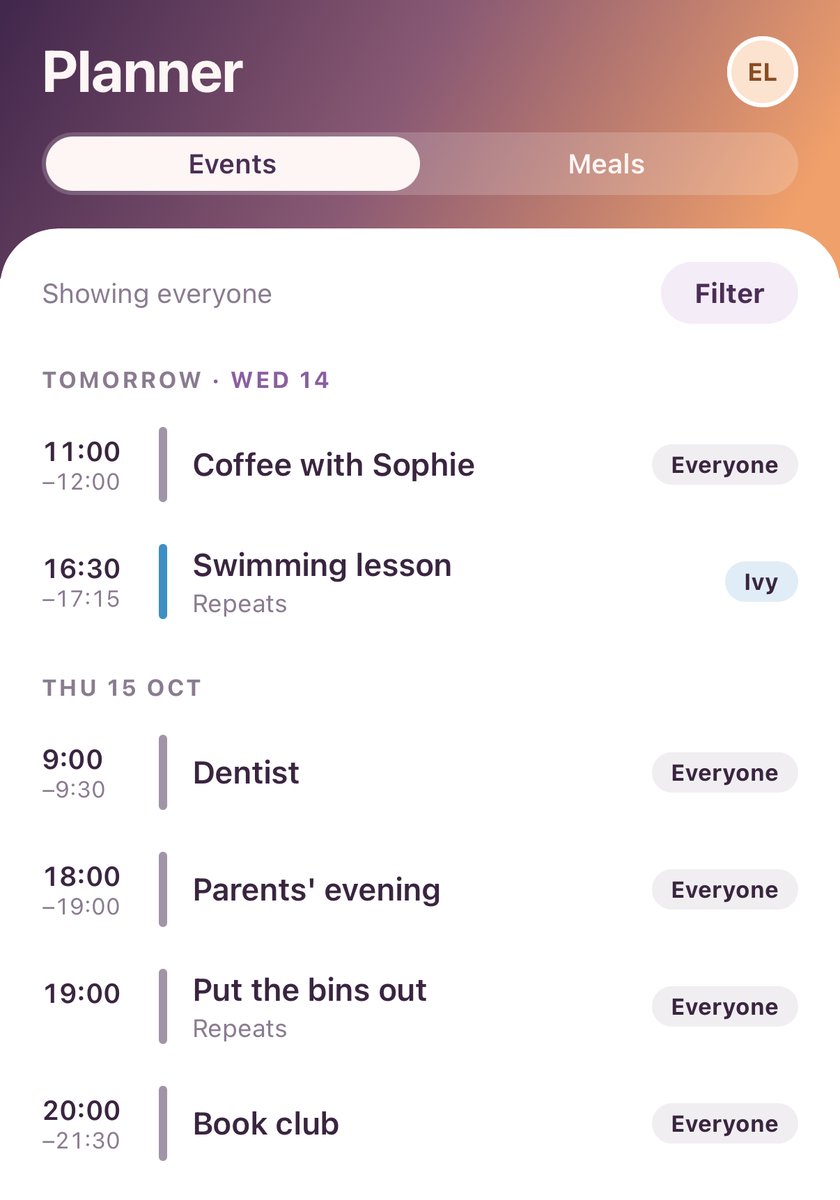
Meals, activities and birthdays on one calendar, a week at a time. Say who each plan is for and repeat it weekly. The calendars already on your phone show up too, and they stay on your phone.

Recipes live in the kitchen. The rest of the house is in here too: your plans and calendar, to-dos and reminders, notes and the shopping list. Use one room or all of them.
Coming soon


Free for 14 days. Nothing to enter to start.
Tap a room to look inside.
Meals, activities and birthdays on one calendar, a week at a time. Say who each plan is for and repeat it weekly. The calendars already on your phone show up too, and they stay on your phone.
Choose the big card at the top of Home, the shortcuts you want and the cards underneath. Each person picks their own notifications. If you are not sure what a setting does, tap the small i beside it.
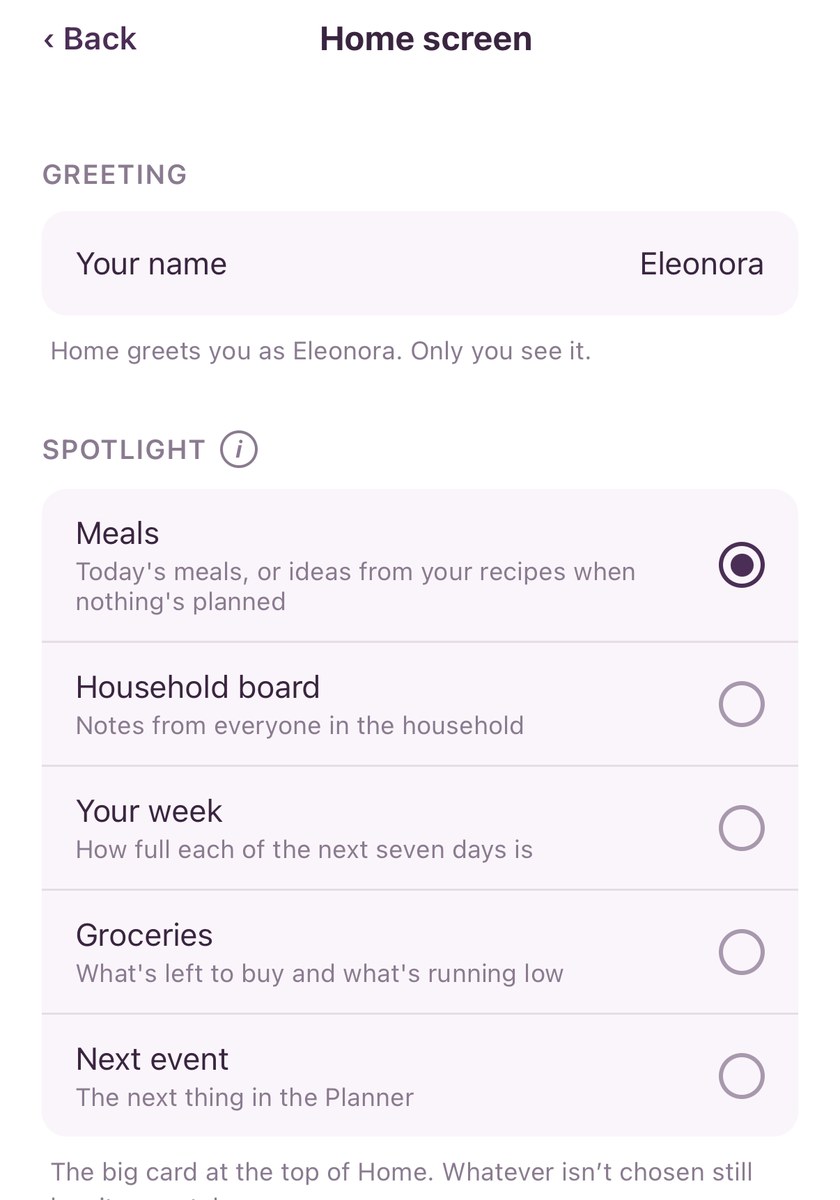
Paste a link from any recipe site and it fills itself in. Add a note like “less chilli next time”, then cook one step at a time with the screen kept awake. The grocery list files each item under the right aisle, and everyone’s phone updates as things get ticked off.
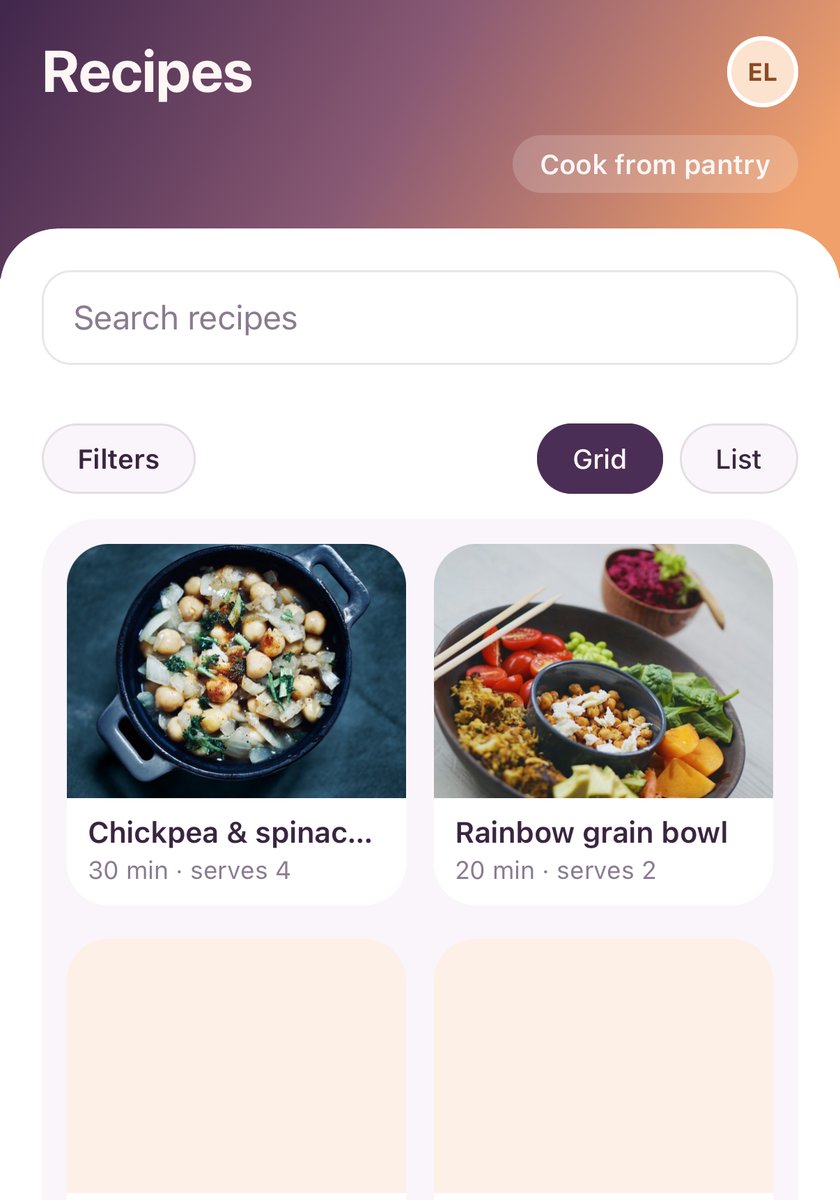
To-do lists for Home, School or anything else, with due dates and gentle reminders. Notes sorted into topics, with headings and proper lists. Share them with the house or keep them to yourself.
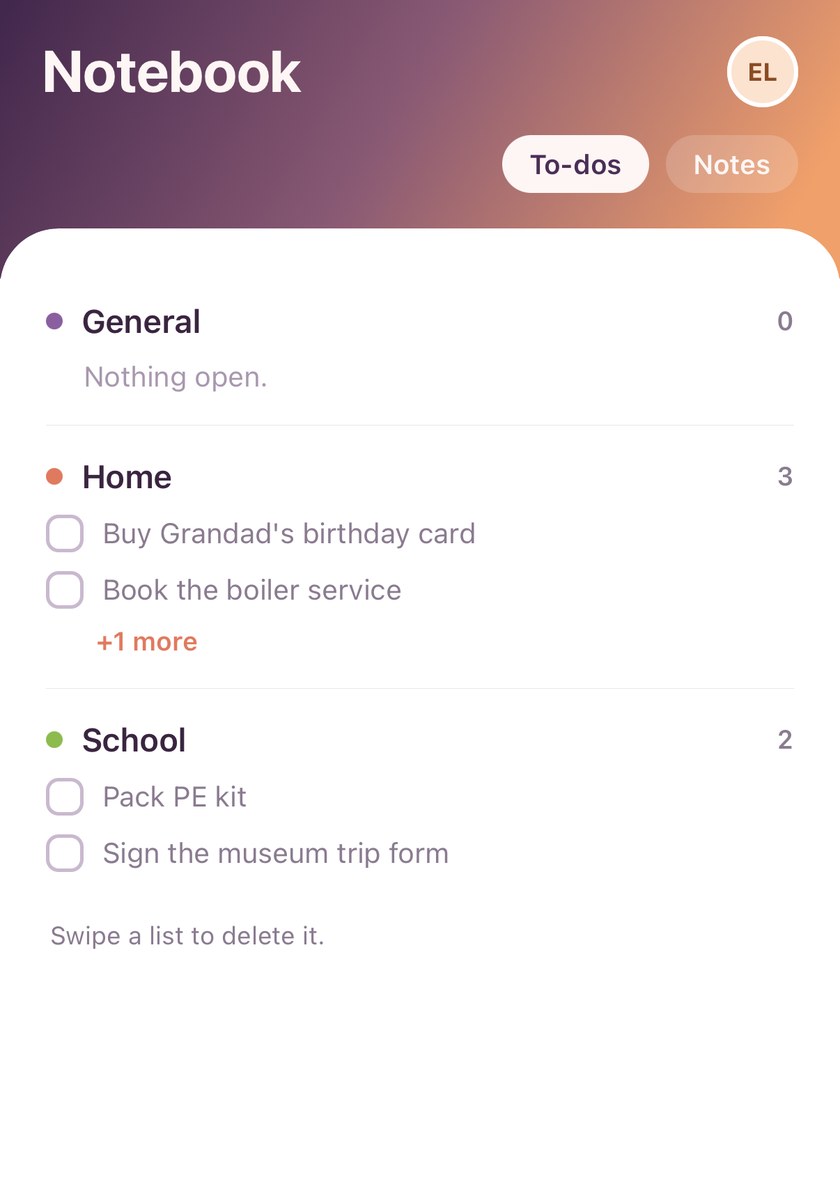
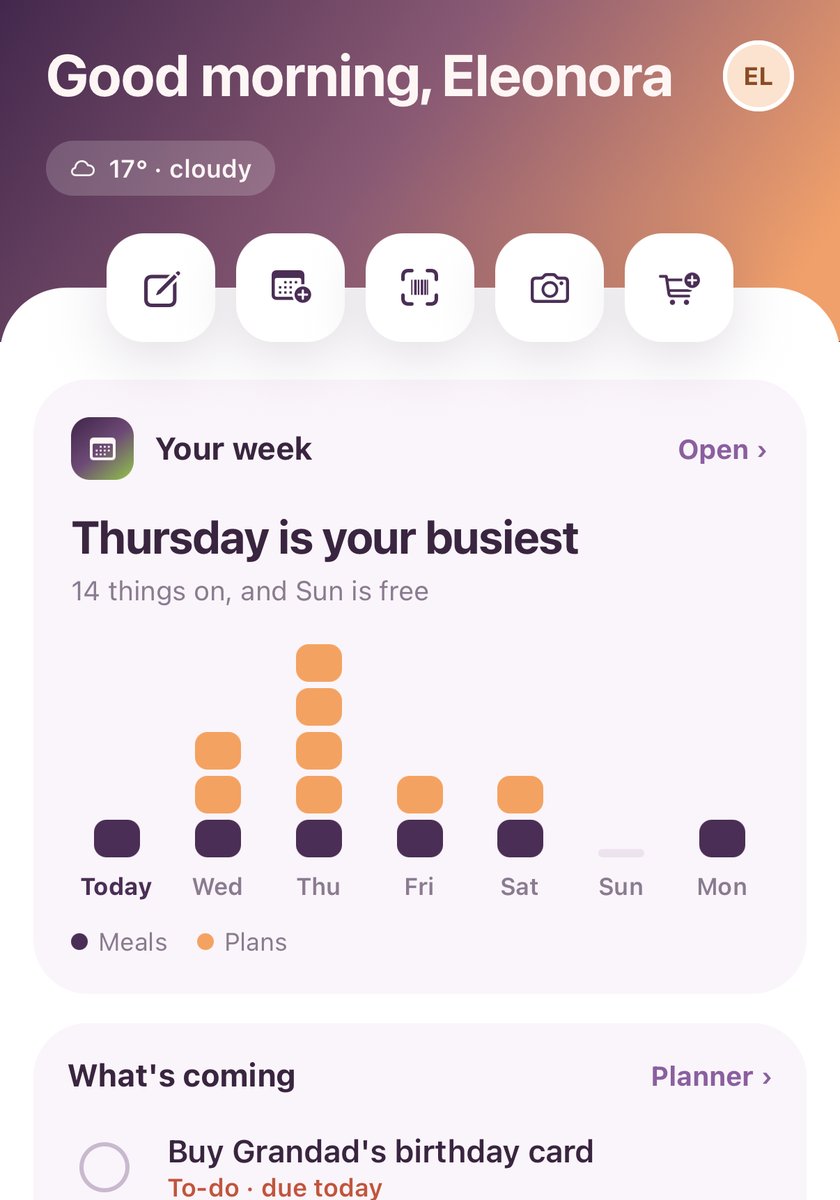
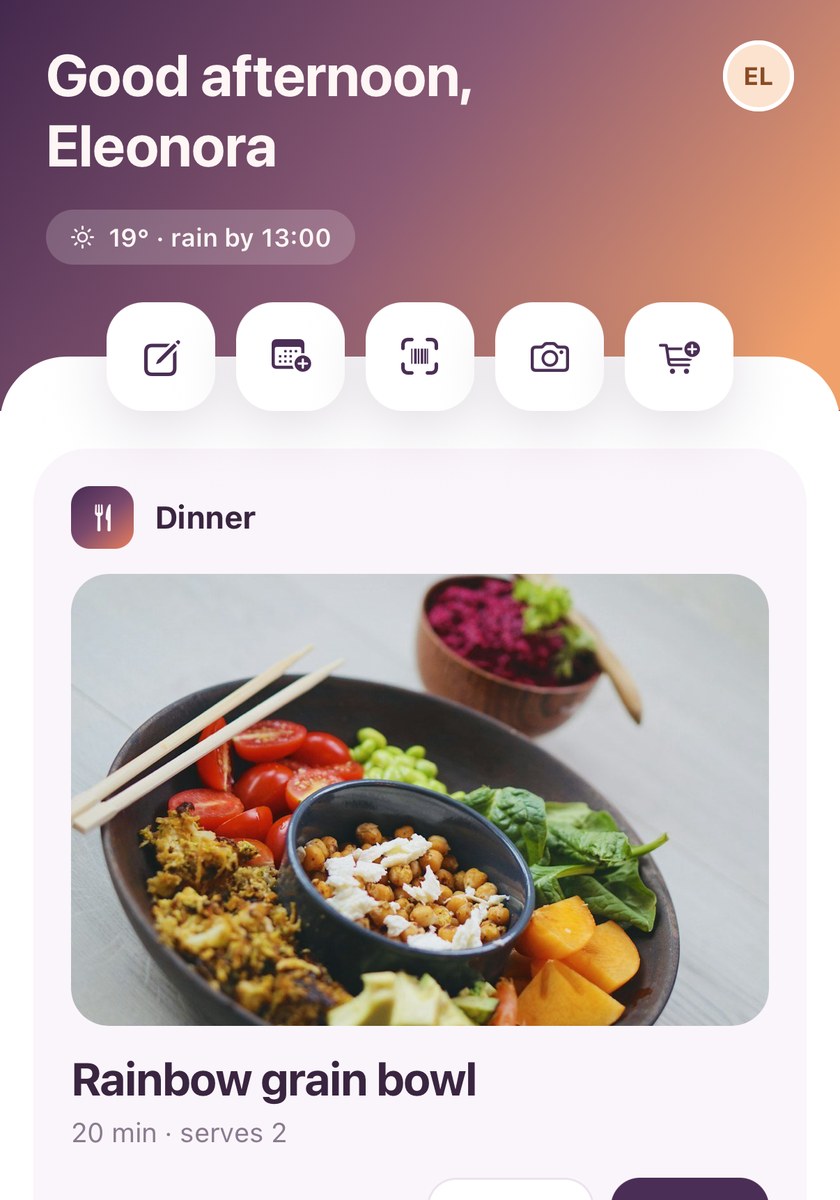
The big card at the top of Home is yours to choose. It can show your whole week, with the busiest and the free days. Or tonight’s dinner and what is missing from the list. Or the shopping list, the next event or the household board.
Change it any time in Settings › Home screen, along with the shortcuts, the weather and what sits underneath.
Keep it to yourself, or invite the people you live with. You all see the same plans and lists as they change.
Skip the rooms you don’t want. Choose what Home shows, your shortcuts and your notifications.
Your calendar, to-dos, reminders, notes, groceries and recipes together, so you are not checking five apps.
Everything you have opened is still there offline. Changes are saved and sent when you are back online.
Peas of Mind is meant to take the complication out of simple things. It brings together what you already juggle and adds a few small comforts where they help.
Send feedback from Settings in the app. A real person reads every message and replies. The tiniest annoyances are often the ones that matter most, and they are probably bothering someone else too.
Real households use and test Peas of Mind. We also use AI agents to stress-test every part of it for security, speed and how easy it is to use.
Everyone in your household sees and can change everything: recipes, plans, lists and to-dos. Nobody outside your household can see any of it.
Yes. When you make a to-do list or a note topic, choose Just for me: only you ever see it or what is in it. Choose Shared with household for things everyone should see.
When you first set up, choose "Me and my household" and type their email addresses (up to five). Each gets an email, and joins as soon as they sign in with that address. Later on, go to Settings › Account & Household › Invite someone and send them the code; they enter it under "Have an invite code?" when they first sign in, or Settings › Account & Household › Join a different household.
Yes. Settings › Home screen changes your name, the big card and which cards show on Home, including the household board. Settings › Account & Household invites people whenever you are ready.
Yes. In Settings › Planner & Calendars, add them as a family member. They get their own colour, and you can plan events for them, without them needing an account.
No. Sign in with Apple, with Google, or with a code we email you.
Yes. You can see everything you've opened before, and changes you make offline are saved and sent as soon as you're back online.
Both are in Settings › Data & privacy. Deleting is permanent, so export first if you might want a copy.
Go to Settings › Feedback, choose Bug report or Feature request, and tell us in a line or two. It comes straight to us and we read every one.
Yes. That's the one thing you can't report from inside the app, so email support@peasofmind.co.uk and we'll sort it out. You'll find that address in the app too, under Settings › About & contact.

Want to know when it is ready, or have a question first? Say hello.
Coming soon